
Otter supports SAML-based single sign-on (SSO) with Microsoft Entra ID (formerly Azure Active Directory (AD)), enabling enterprise users to sign in through Microsoft’s identity platform. This article explains how to configure SSO in Otter using Entra ID, including required SAML configuration and common issues.
Step 1: Create the SSO Enterprise App in Entra Create and configure the Enterprise application for Otter in Microsoft Entra ID
-
Sign in to Microsoft Entra. Navigate to Enterprise apps. Click New application.
Note: Create a new Enterprise application specifically for SAML SSO. Do not use an existing Otter application. See Which Otter application should I use for SSO? for more information. - Click Create your own application.
- Create your application. Click Create to proceed.
- Name the application (e.g., Otter.ai SSO)
- Select Integrate any other application you don't find in the gallery (Non-gallery)
- Once the application has been created. Click Set up single sign on.
- Select SAML.
Step 2: Set up Single Sign-On Configure the SAML URLs, user attributes, claims, and certificate required by Otter
Follow the steps below to set up SSO.
Know your Team Handle ✨
Before starting, copy your Team Handle.
- Navigate to Manage Workspace → Settings → Identity & Access. Next to Single Single-On (SSO), click Manage.
- Each workspace will have its own unique team handle. Click Copy to copy your workspace's team handle.
yourhandle with your team’s handle (e.g., https://otter.ai/saml/yourhandle → https://otter.ai/saml/workspace-team-handle-entra).1) Basic SAML configuration
- Edit Basic SAML Configuration.
- Click Add identifier and Add reply URL.
-
Add the following URLs, replacing yourhandle with your Team Handle obtained in Step 1. Click Save when finished.
-
Identifier (Entity ID):
https://otter.ai/saml/metadata/yourhandle -
Reply URL (Assertion Consumer Service URL:
https://otter.ai/saml/yourhandle
Note: Otter does not require Sign-on URL, Relay State, or Logout URL. These fields can be left blank. -
Identifier (Entity ID):
-
✅ Basic SAML Configuration is complete.
2) Attributes & Claims
Follow the steps below to ensure the correct attributes & claims are added.
-
Edit Attributes & Claims.
Note: Microsoft Entra ID may use default claim names (e.g.,http://schemas...). Update each claim name to match the SAML attributes required by Otter, such asemail,first_name, andlast_name. - Click into Unique User Identifier (NameID). Edit the following settings, then click Save.
-
Name identifier format:
Persistent -
Source attribute: A unique, permanent identifier for the user (e.g., employee ID). Learn more about selecting a NameID in our FAQs.
Note: Avoid using email addresses for your NameID attribute. Email addresses can change over time, leading to duplicate accounts.
-
Name identifier format:
- Click into user.mail claim. Edit the following settings, then click Save.
-
Name:
email - Namespace: Leave blank
-
Name format:
Unspecified -
Source attribute:
user.mail
-
Name:
- Click into user.givenname claim. Edit the following settings, then click Save.
-
Name:
first_name - Namespace: Leave blank
-
Name format:
Unspecified -
Source attribute:
user.givenname
-
Name:
- Click into user.surname claim. Edit the following settings, then click Save.
-
Name:
last_name - Namespace: Leave blank
-
Name format:
Unspecified -
Source attribute:
user.surname
-
Name:
- Delete the user.userprincipalname claim under Additional claims. It is not needed.
-
✅ Attributes & Claims setup is complete.
Note: Microsoft Entra ID may use default claim names (e.g.,http://schemas...). Update each claim name to match the SAML attributes required by Otter, such asemail,first_name, andlast_name.
3) SAML Certificates
- Download Certificate (Base64).
- Once the file has downloaded. Open the certificate to view the content. Copy the certificate.
4) Set up Otter.ai SSO
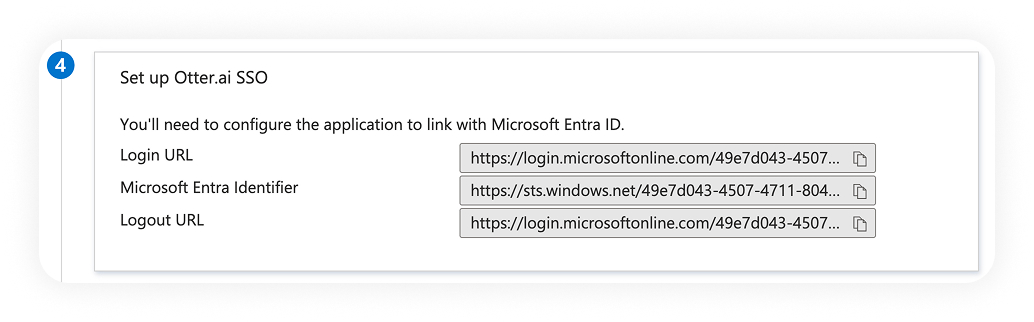
Configure the SSO settings on Otter's side.
- Navigate to Manage Workspace → Settings → Identity & Access. Next to Single Single-On (SSO), click Manage.
- Fill out the fields using the info generated by your IdP.
- Login URL → SAML Endpoint
- Microsoft Entra Identifier → Identity Provider Issuer
-
Certificate content → Public Certificate
-
Click Save and Test.
Step 3: Enable SAML Add your Microsoft Entra ID configuration to Otter, test the connection, and enable SAML SSO
Once testing is complete and everything looks correct, toggle Enable SAML on for your workspace. You’ll have two options when enabling SSO:
- Allow other login options: SSO is optional; team members can continue using their preferred sign-in methods. Recommended during the testing phase to ensure uninterrupted access.
-
Require SSO for all Team members: All team members must sign in using SSO. Other sign-in methods are disabled.
If your organization uses assignment-based access, ensure the required users and groups are assigned to the Otter SSO enterprise application.
🔐 Advanced SAML SSO options (optional) Configure signed authentication requests, encrypted SAML assertions, and NameID encryption compatibility with Microsoft Entra ID.
Otter provides additional SAML security options to help organizations strengthen authentication between Microsoft Entra ID and Otter. These settings are optional and can be configured after completing the standard SAML SSO setup.
In Otter, navigate to your workspace's Configure Single Sign-On (SSO) settings and locate Advanced Settings (optional).
Sign AuthNRequest Sign authentication requests from Otter so Microsoft Entra ID can verify their authenticity.
Sign AuthNRequest allows Otter to digitally sign SAML authentication requests sent to Microsoft Entra ID. Entra verifies the signature using Otter's public certificate before processing the request.
To enable signed authentication requests, configure the verification certificate in Entra and enable the corresponding option in Otter.
-
In Otter, open Configure Single Sign-On (SSO). Under Advanced Settings (optional), click Download Certificate.
-
Locate the downloaded certificate, typically named otter.crt, and rename the file extension from
.crtto.cer. The certificate contents should remain unchanged. Only rename the file extension. - Open the Microsoft Entra admin center and navigate to Entra ID → Enterprise applications → All applications. Select your Otter Enterprise application.
-
Select Single sign-on. Under SAML Certificates, locate Verification certificates (optional) and click Edit.
- In the Verification certificates panel:
- Enable Require verification certificates.
- Leave Allow requests signed with RSA-SHA1 disabled.
-
Click Upload certificate.
-
Select the renamed otter.cer file and click OK.
-
Confirm that the certificate appears in the verification certificates list, then click Save.
- Return to Otter and enable Sign AuthNRequest under Advanced Settings (optional).
-
Click Save and Test, then complete the Microsoft Entra SSO authentication flow.
Require Assertion Encryption Encrypt SAML assertions sent from Microsoft Entra ID to Otter to protect authentication information.
Require Assertion Encryption ensures that Microsoft Entra ID encrypts SAML assertions before sending them to Otter. The encrypted assertion can be decrypted by Otter using the corresponding private key.
This provides an additional layer of protection for identity information contained in SAML assertions, including the NameID and other user attributes.
-
In Otter, open Configure Single Sign-On (SSO), enable Require Assertion Encryption, and click Download Certificate under Advanced Settings (optional).
-
Locate the downloaded otter.crt certificate and rename its extension to otter.cer. Do not modify the certificate contents.
- Open the Microsoft Entra admin center and navigate to Entra ID → Enterprise applications → All applications. Select your Otter Enterprise application.
-
In the left navigation, under Security, select Token encryption. Click Import Certificate.
-
Select the otter.cer file and click Add.
-
Verify that the certificate was imported successfully. The certificate should initially display a status of Inactive.
-
When ready to enable encryption, click the three-dot menu (⋯) next to the certificate and select Activate token encryption certificate.
-
In the confirmation dialog, click Yes.
-
Confirm that the certificate status changes to Active and Entra displays Token encryption is enabled.
-
Return to Otter and click Save and Test and complete the Microsoft Entra SSO authentication flow.
Verify SAML assertion encryption
After successfully signing in, administrators can optionally inspect the SAML response to verify that the assertion is encrypted.
- Open your browser's developer tools and select Network.
- Enable Preserve log and complete an SSO sign-in.
- Locate the SAML authentication POST request and find
SAMLResponseunder Payload. - Decode the Base64-encoded SAML response locally and check whether the XML contains an
EncryptedAssertionelement in the SAML assertion namespace.
A successful verification confirms that the SAML response contains an encrypted assertion.
EncryptedAssertion element.Require NameID Encryption Understand NameID encryption support and why this setting should remain disabled for Microsoft Entra ID.
Require NameID Encryption is an additional SAML security option that requires the identity provider to encrypt the NameID element separately.
Microsoft Entra ID does not support this separate NameID encryption configuration for the Otter SAML integration. However, when Require Assertion Encryption is enabled, Entra encrypts the entire SAML assertion, including the NameID contained within it.
No additional configuration is required in Microsoft Entra ID for this option.
⚙️ Manage your application properties in Entra Manage user assignment, app visibility, and other access settings for the Otter Enterprise application
Review and adjust the following application properties as needed:
-
Enabled for users to sign in: Set to
Yesfor users to be able to authenticate into Otter using SSO. - Logo: Optionally add a logo to make the application easier to recognize. The Otter logo is available at the bottom of this article.
-
User access URL: Share this link with team members for direct access. It supports both signing in and creating a new account through just-in-time (JIT) provisioning.
Tip: Team members can also access the Otter SSO application through Microsoft My Apps. - Assignment required: Review this setting to control access by assigning specific users or groups.
-
Visible to users: Set to
Yesif you want the application to appear in Microsoft My Apps.
👤 Member SSO flow See how workspace members sign in to Otter using IdP-initiated and SP-initiated SSO
Once SAML SSO is enabled, members who have been added to or have access to the SSO flow can sign in to Otter using your organization’s identity provider (IdP).
SP-initiated sign-in
For an SP-initiated sign-in, members start from Continue with Microsoft or Other ways to log in and are redirected to your identity provider to authenticate. After successful authentication, they are redirected back to Otter and signed in.
IdP-initiated sign-in
For an IdP-initiated sign-in, members can start from Microsoft Apps. After successful authentication, they are redirected to Otter and signed in.
FAQs
Where can I learn more about SSO?
Check out our general guide on setting up SSO.
Does Otter support Identity Provider (IdP) Just-In-Time (JIT) provisioning through Entra?
Yes. New users can click on the Otter.ai SSO application in Microsoft My Apps. An account will be created, and the user will be automatically added to the workspace.
Does Otter support Service Provider (SP) Just-In-Time (JIT) provisioning?
Contact your Otter account manager for more info and to get started.
Do I need to assign users or groups to the application?
If your organization uses assignment-based access, ensure the required users and groups are assigned to the Otter SSO enterprise application.
Why are Sign on URL, Relay State, and Logout URL left blank?
Otter does not require these fields for SAML SSO.
- Sign-on URL is optional and not needed for Otter’s SSO flows
- Relay State is not used by Otter
- Logout URL is optional because SAML single logout (SLO) is not supported
Leaving these fields blank helps avoid configuration errors.
What's a good example of a NameID?
✅ Recommended: 9f3a2c71-84e2-4c1d-a8e1-3f6b92a01d77
A good NameID should:
- Uniquely identify one user
- Remain consistent across logins
- Never be reassigned to a different person
🚫 Not recommended: john.smith@company.com
A bad NameID may:
- Cause Otter to create a new account instead of recognizing an existing user
- Change when a user’s email or attributes change, such as during:
- Name changes
- Domain migrations
- Mergers and acquisitions
- Email alias updates
- Result in duplicate user accounts
- Lead to loss of access to data
- Require administrators to spend time cleaning up user accounts
Why aren't the default Microsoft Entra ID claim names working with Otter?
Microsoft Entra ID may automatically use default claim names that do not match the SAML attribute names required by Otter, such as http://schemas....
Update the claim names in Microsoft Entra ID to match Otter's required SAML attributes:
emailfirst_namelast_name
The attribute values should continue to map to the corresponding user information in Microsoft Entra ID.
Is there a logo I can download for the application?
Yes. You can download this image or the one linked at the bottom of this article.
How do I resolve Microsoft Entra ID error AADSTS75011?
Microsoft Entra ID error AADSTS75011 occurs when the authentication method used during SAML SSO sign-in does not match the method requested by Otter.
This error may be resolved by disabling the Include Requested AuthnContext setting in your workspace's SAML SSO configuration. This setting is managed by Otter Support.
If you encounter this error, contact our Otter Support team to review your SSO configuration. For more information, see our Microsoft Entra ID error AADSTS75011 troubleshooting guide.
What does error AADSTS76021 mean, and how do I fix it?
Microsoft Entra error AADSTS76021 occurs when Microsoft Entra ID requires signed SAML authentication requests, but the request sent by Otter is not signed.
You may see the following error when attempting to sign in:
This typically happens when Require verification certificates is enabled in Microsoft Entra ID, but Sign AuthNRequest is disabled in Otter.
To resolve this error:
- Open the Microsoft Entra admin center.
- Navigate to Entra ID → Enterprise applications → All applications and select your Otter Enterprise application.
- Select Single sign-on.
- Under SAML Certificates, locate Verification certificates (optional) and click Edit.
- Disable Require verification certificates and click Save.
- Return to Otter and confirm that Sign AuthNRequest is disabled under Advanced Settings (optional).
- Retry signing in to Otter using Microsoft Entra SSO.
I see multiple Otter applications in Microsoft Entra. Which one do I use for SSO?
Use the Enterprise application you created specifically for SAML SSO. Do not use the Otter application that was automatically created when using Continue with Microsoft or connecting a Microsoft calendar to Otter.
You can identify the automatically generated Otter application by its Homepage URL of https://otter.ai. Your SAML SSO Enterprise application will have a different Homepage URL.
Feedback
0 comments
Article is closed for comments.